
Easy IPTV Setup Instructions
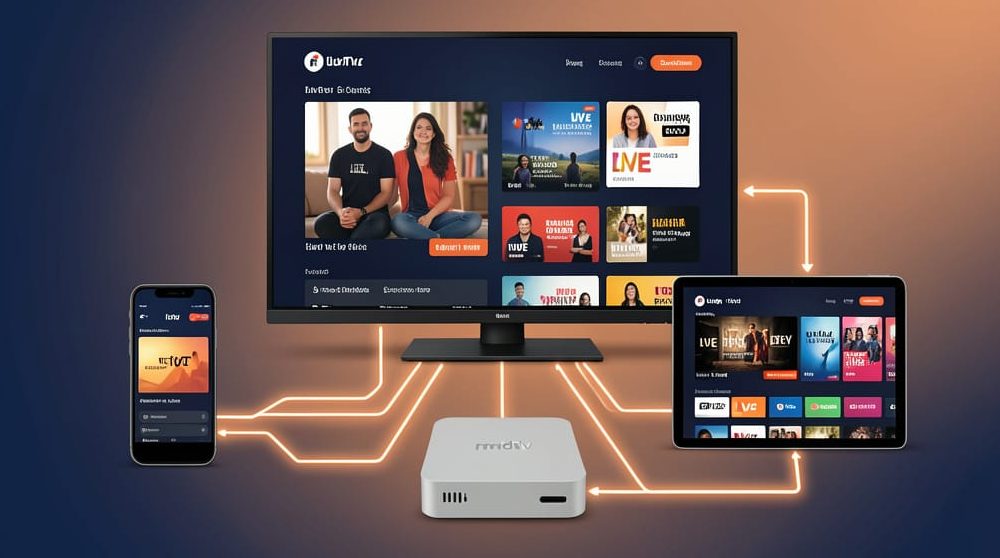
FlixPlayz IPTV Setup Guide
Complete step-by-step instructions for the most popular streaming devices and apps. These detailed guides use your FlixPlayz subscription credentials (M3U URL, Xtream Codes login, or Portal URL) delivered to your email inbox immediately after payment confirmation. Each setup takes 5-15 minutes. We recommend 10+ Mbps stable internet (Ethernet preferred over Wi-Fi) for the best 4K streaming experience without buffering.
1. Amazon Fire TV Stick / Fire TV (IPTV Smarters Pro) – Most Popular Choice
Why choose this: #1 IPTV player worldwide. Supports Xtream Codes, full EPG guide, VOD movies/series, favorites lists, parental controls, and multi-screen support. Works perfectly on Firestick 4K, Lite, or any Fire TV device.
Detailed Setup (8 steps):
Enable Developer Mode: From Fire TV Home > Settings (gear icon) > My Fire TV > Developer Options > Apps from Unknown Sources > Turn ON (enable Downloader).
Install Downloader: Return to Home screen > Search magnifying glass > Type “Downloader” > Select official Amazon app > Download + Install.
Download Smarters Pro: Open Downloader > Enter code 766618 (or trusted source like: DOWNLOAD STREAM PLAYER) > Go > Wait for APK download > Install. OR download the latest version here: DOWNLOAD PRO PLAYER
Launch App: After install, click Open (or find IPTV Smarters under “Your Apps & Channels” > See All).
Skip Adult Content Warning: Select No if prompted > Add User button (bottom right).
Enter FlixPlayz Credentials: Choose Login with Xtream Codes API > Input:
URL/Host: (from your FlixPlayz email)
Username: (from your FlixPlayz email)
Password: (from your FlixPlayz email)
Connect: Tap Add User > Wait 30-60 seconds for “User added successfully” message.
Start Streaming: Select your profile > Choose Live TV, Movies, Series, or EPG guide.
Pro Tips:
Move to home screen: 3-line menu > Move to Front
Clear cache weekly: Fire TV Settings > Applications > IPTV Smarters > Clear Cache
Forgot credentials? Check spam folder or email contact@flixplayz.com
2. Android TV / Android Phone / Tablet (TiviMate Premium) – Best Android Experience
Why TiviMate: Professional TV-like interface, lightning-fast channel switching, full EPG, recording support, favorites/groups, dark mode. Premium version (€4.99/year) unlocks all features.
Detailed Setup:
Google Play Store > Search “TiviMate IPTV Player” > Install (free version works, upgrade later).
Open TiviMate > Grant permissions > Tap + (top-right) > Add Playlist.
Choose Xtream Codes Login (preferred) or M3U Playlist:
Xtream Codes: Enter URL, Username, Password from FlixPlayz email > OK
M3U: Paste your M3U URL > Name playlist “FlixPlayz” > OK
Playlist loads (1-2 minutes) > Customize:
EPG Settings: Enable if available in your subscription
Group favorites: Long-press channels to add to groups
Playback settings: Hardware decoder + 4K support
Navigate: Left = Live TV, Right = EPG guide, Bottom = VOD/Movies.
Phone/Tablet Bonus: Chromecast support built-in—cast to TV seamlessly.
3. LG Smart TV (Smart IPTV App) – WebOS Favorite
Why Smart IPTV: Simple MAC-based activation, no login needed, supports 4K, EPG, favorites. One-time fee €5.49 after 7-day trial.
Complete Setup:
LG Content Store (press Home on remote) > Search “Smart IPTV” > Install.
Launch app > Note 12-digit MAC address displayed on screen (write it down).
On phone/computer browser: Visit http://siptv.eu/mylist
Fill form exactly:
MAC Address: Your TV’s MAC (no colons)
Playlist Name: “FlixPlayz”
Playlist Link: Your M3U URL from FlixPlayz email
Countries: Select Various
Save online: Check this box
Click Add Link > Wait 10 seconds > Restart Smart IPTV app on TV.
Channels load automatically—sorted alphabetically with EPG.
Troubleshooting: If no channels, wait 5 minutes or restart TV. Clear browser cache if MAC upload fails.
4. MAG Box / Infomir Devices (Portal Method) – Set-Top Box Standard
Why MAG: Native portal support, hotel-grade stability, 24/7 uptime, perfect for permanent installs.
Portal Setup (LuXtream/Xtream Codes):
Ensure your MAC address was provided during FlixPlayz purchase (check your confirmation email).
Restart MAG box > Wait for main menu > Settings (blue button or gear).
Navigate: System Settings > Servers > Portals > Portal 1.
Enter exactly:
Portal 1 Name: “FlixPlayz”
Portal 1 URL: Copy Portal URL from your FlixPlayz email (http://server.com:8080/)
Press OK/Green to save > EXIT twice > Restart box (Menu > Reboot).
Main screen loads with all channels, categories, VOD, and EPG ready.
5. Formuler Z8 Pro Max (MyTVOnline 2) – Premium Android Set-Top Box
Why Formuler: Best hardware + software combo, 4K 60fps, DVR recording, full IPTV features.
Setup:
MyTVOnline 2 pre-installed > Open > Note MAC address (top-right corner).
Providers tab > + > Add Provider.
Choose Xtream Codes or Stalker Portal:
Server URL: Your FlixPlayz portal
Username/Password: From email
Connect > Wait 60 seconds > Full lineup loads (Live, VOD, Series, Sports).
Customization: Create favorites, set parental PIN, adjust EPG time.
6. Smartphones / Tablets (iOS & Android) – GSE Smart IPTV (Free)
Perfect for travel: Works offline after loading, Chromecast/AirPlay support.
iOS/Android Setup:
App Store/Google Play > GSE Smart IPTV > Install (completely free).
Open > Playlist tab (bottom) > + icon > Add M3U Playlist.
Playlist Name: “FlixPlayz”
Playlist URL: Your M3U link from FlixPlayz
EPG URL: (if provided in your email)
Tap Done > Wait for channels (may take 2-3 minutes first time).
Cast to TV: Chromecast/AirPlay button on playback screen.
7. Windows PC / Mac (VLC Media Player) – Free & Simple
Desktop backup solution for testing or secondary viewing.
Download VLC from videolan.org > Install.
Open VLC > Media > Open Network Stream.
Paste your M3U URL > Play.
Ctrl + L = Channel playlist > Search/Double-click to watch.
Full screen: F11 key.
Essential Performance Tips (Must Read!)
Zero Buffering Checklist:
✅ INTERNET: 25+ Mbps download (test at speedtest.net)
✅ WIRED: Ethernet cable > Wi-Fi (5GHz minimum)
✅ ROUTER: QoS enabled, IPTV priority
✅ DEVICE: Restart weekly + clear app cache
✅ VPN: Optional (NordVPN/ExpressVPN work well)
✅ FIREWALL: Allow IPTV ports (80, 443, 8080)
Common Issues & Fixes:
| Problem | Solution |
|---|---|
| No channels load | Check spam for credentials, verify M3U URL |
| Buffering/freezing | Switch to Ethernet, lower stream quality |
| Playback error | Wait 2-3 minutes or try another channel/Switch to different category |
| App crashes | Clear cache/data, reinstall app |
| “Login failed” | Double-check username/password case-sensitive |
Device model + app used
Screenshot of error
Order email/credentials
Your FlixPlayz subscription works on 100+ devices/apps. These are the most reliable combinations tested daily by hundreds of streamers. Happy streaming!